A step-by-step tour of the app — from sign-in to shared ledgers, statements, and personal wallets.
01
Sign In & Permissions
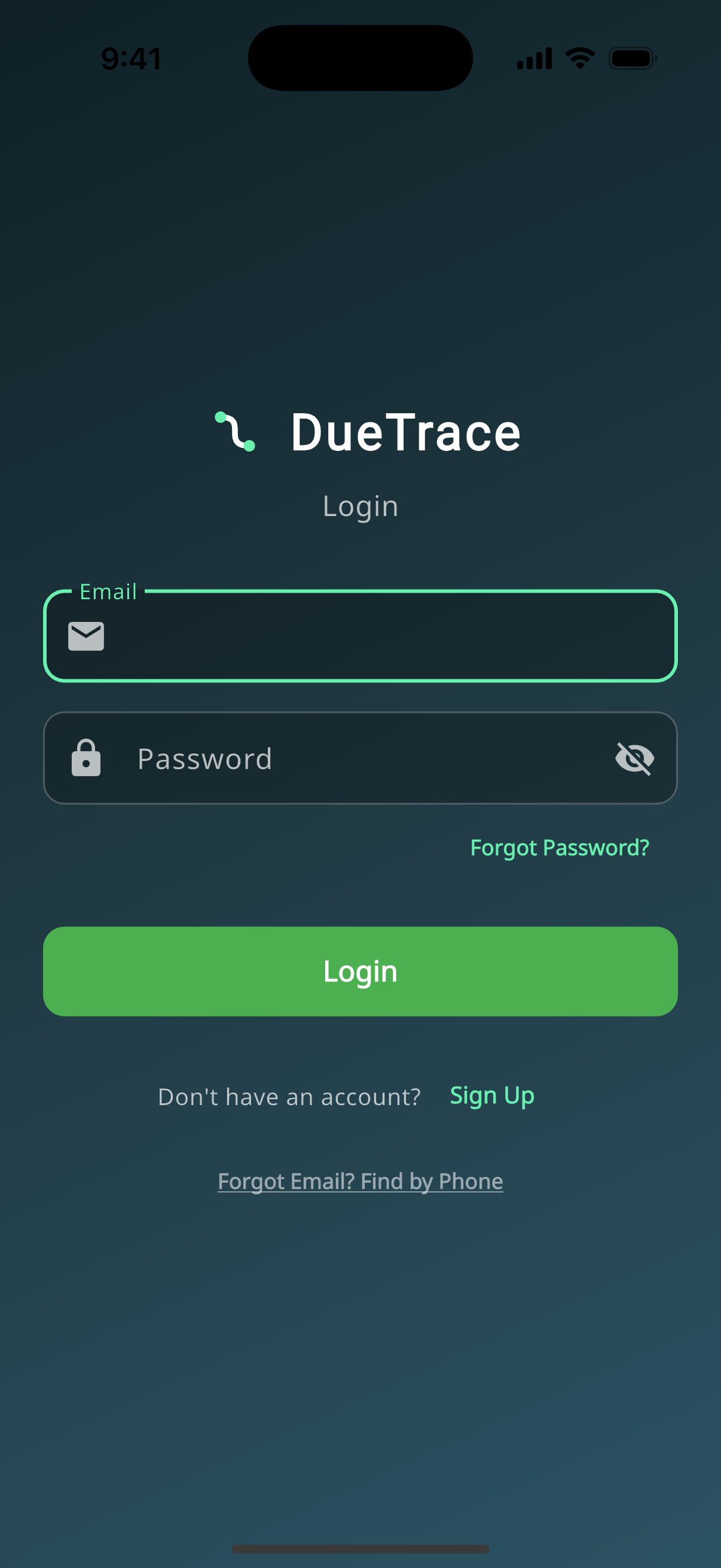
Sign in with your email and password. On mobile, DueTrace then asks for notification access, so you get alerted the moment the other party logs a transaction. Contacts access is optional and only requested the first time you add someone from your address book — we never upload your contacts to our database. Prefer not to share them? Connect with a DueTrace ID, email, or phone number instead.
02
Your Financial Dashboard at a Glance
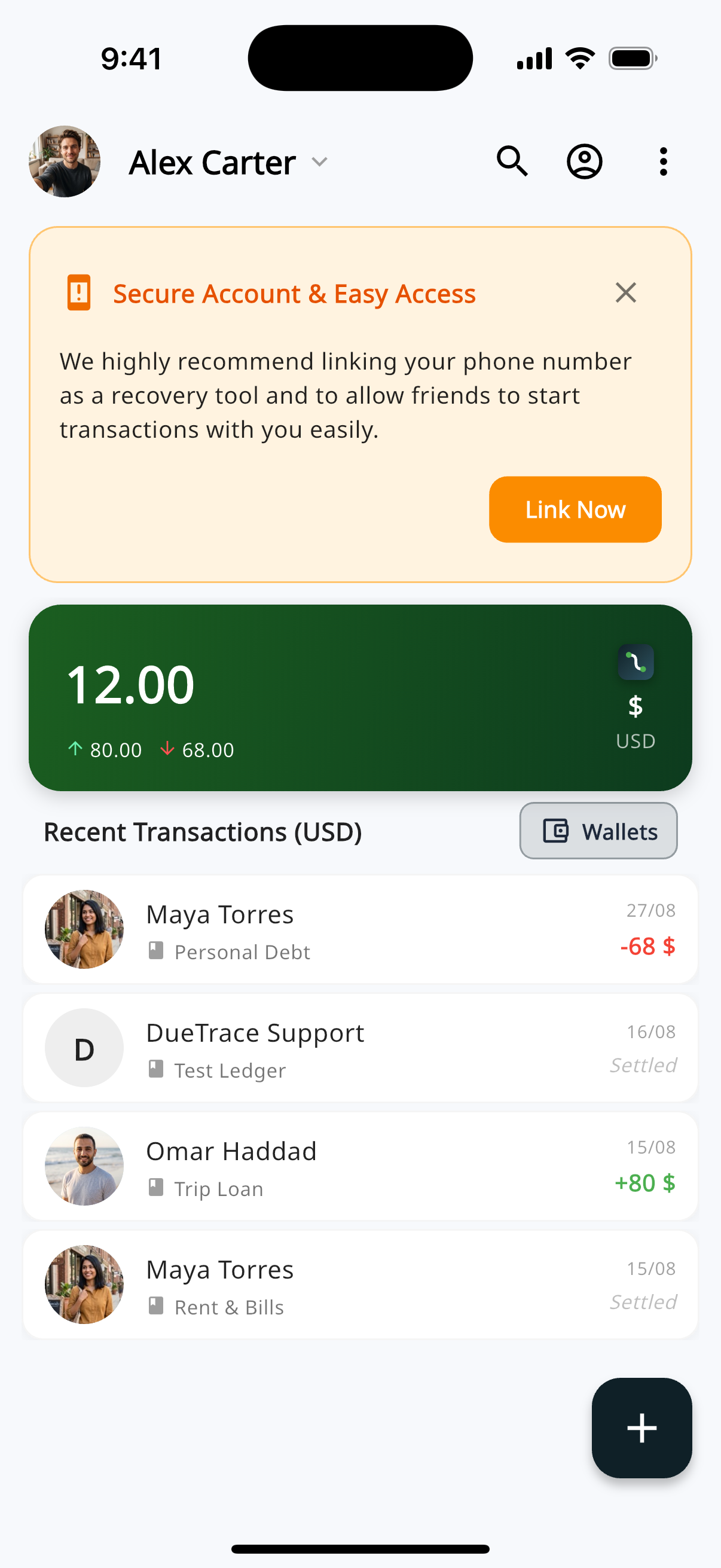
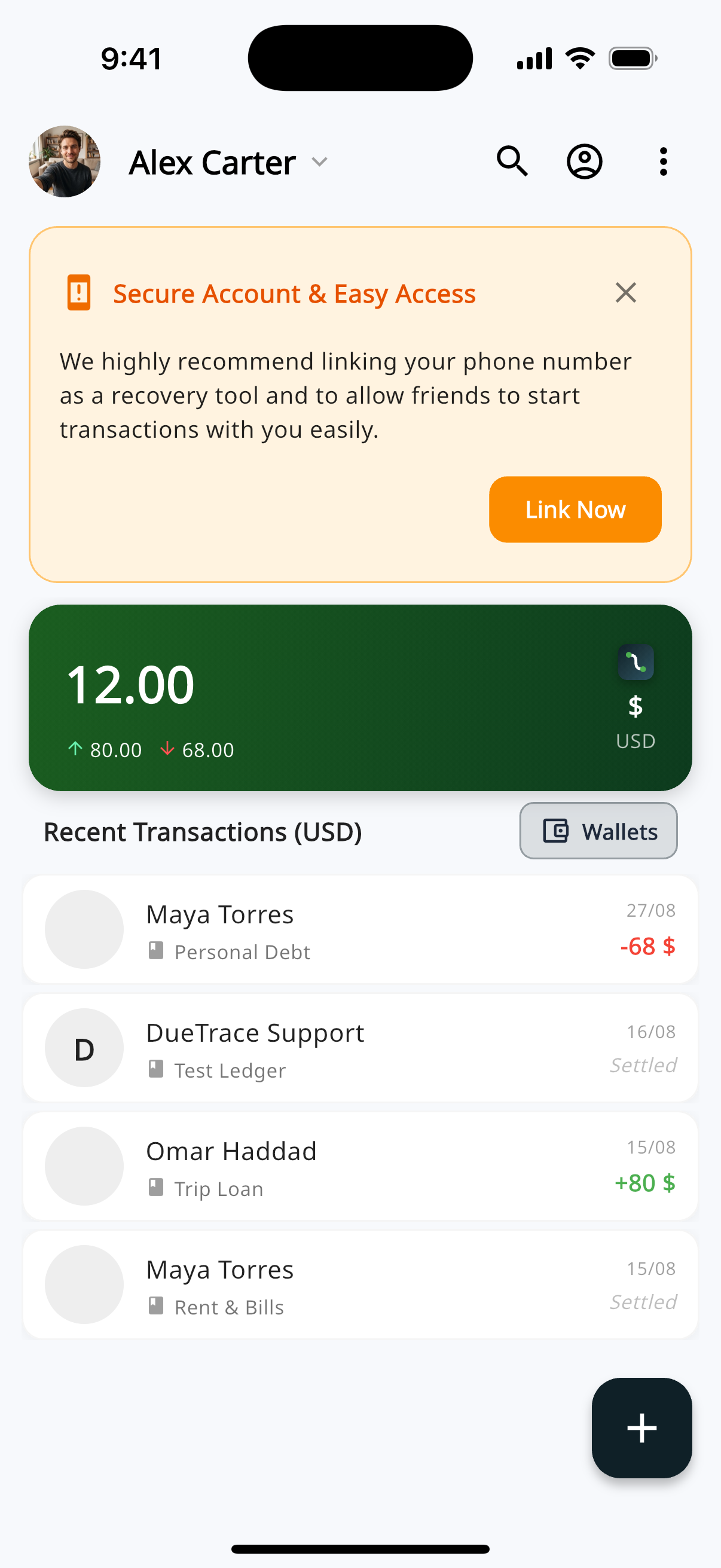
The home screen is clean and intuitive. Your name sits at the top (editable anytime), with an optional, dismissible banner to link your phone number so friends can find you. The summary card shows your net balance for a given currency: red is what you owe overall, green is what you're owed — swipe to see another currency if you use more than one.
03
Smart Ledgers & Multi-Currency Support
The "Recent Transactions" list below shows exactly who owes what. Use search to quickly find a specific person or ledger. Any pending request waiting on your accept or reject also surfaces right here on home.
04
Four Ways to Start a Transaction
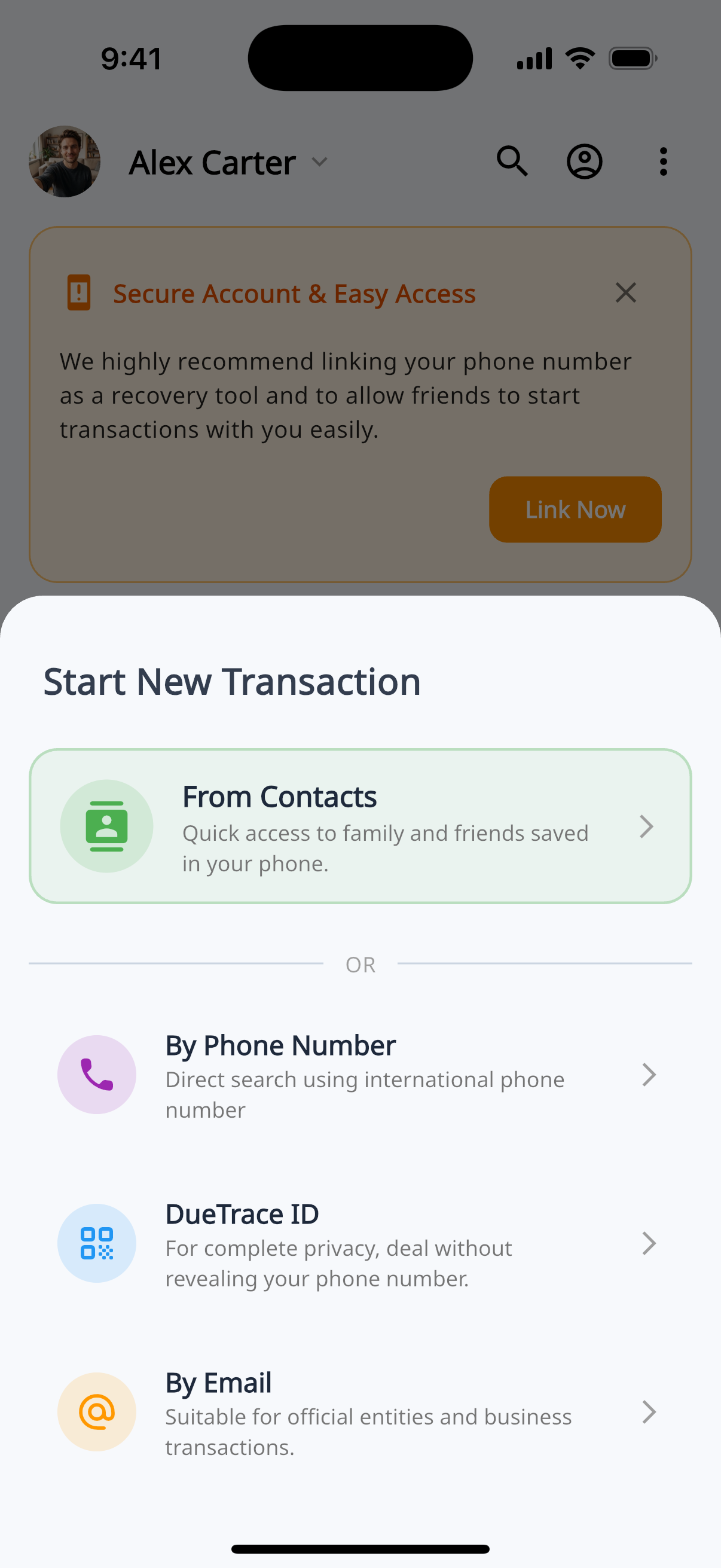
Tap + to open "Start New Transaction," with four ways to find the other party: From Contacts, By Phone Number, DueTrace ID, or By Email. If they're already on DueTrace, you go straight to creating a ledger. If they're not on the app yet: from Contacts you can still open a waiting ledger and invite them via WhatsApp; from Phone you can send a WhatsApp invite; ID and email search only work for people who already have an account.
05
Purpose-Built Ledgers & Currency Setup
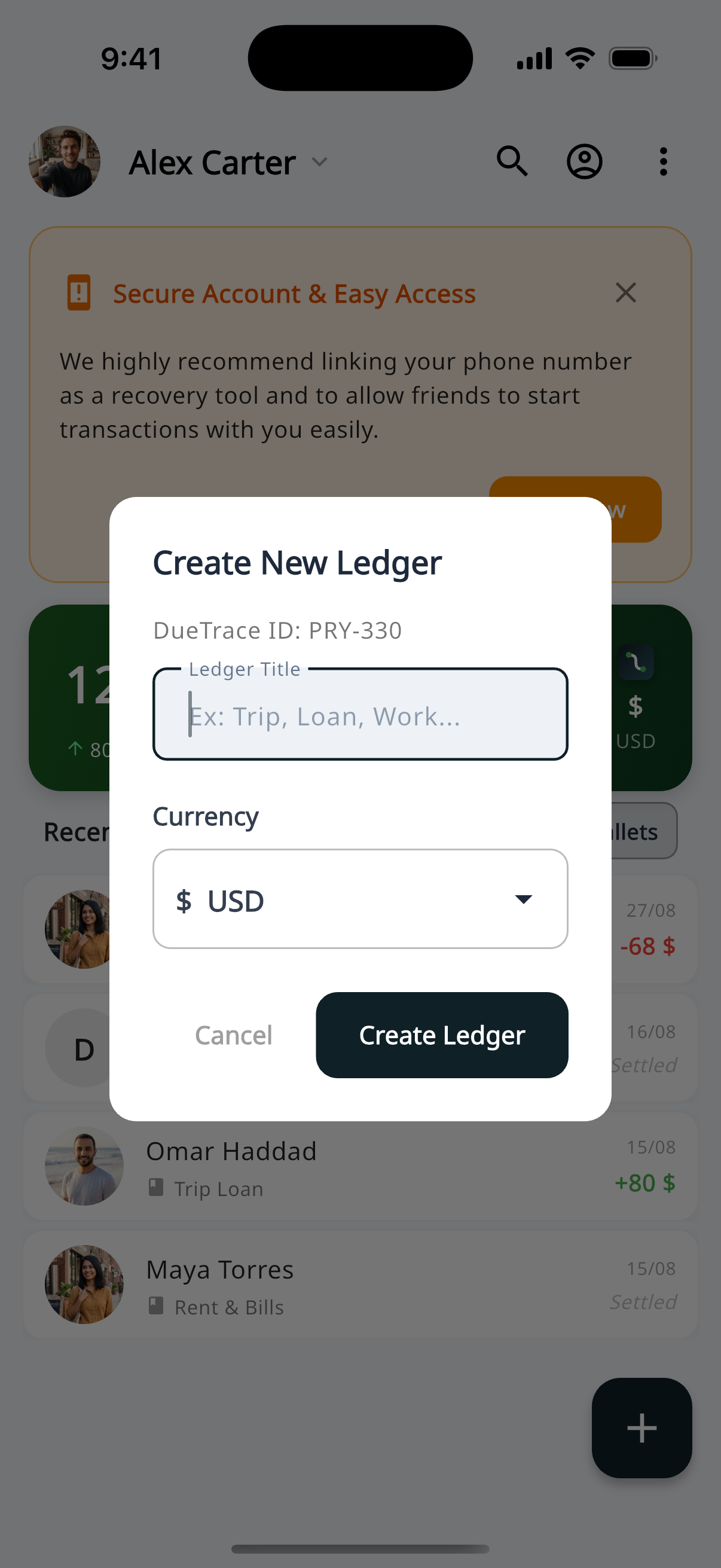
Once you select your contact, a popup lets you set a Ledger Title and currency. Name it whatever makes sense — "Apartment Rent," "Car Installments," "Contractor Payments," "Summer Trip Expenses" — or leave it blank for "General Ledger."
06
Recording Transactions, Your Way
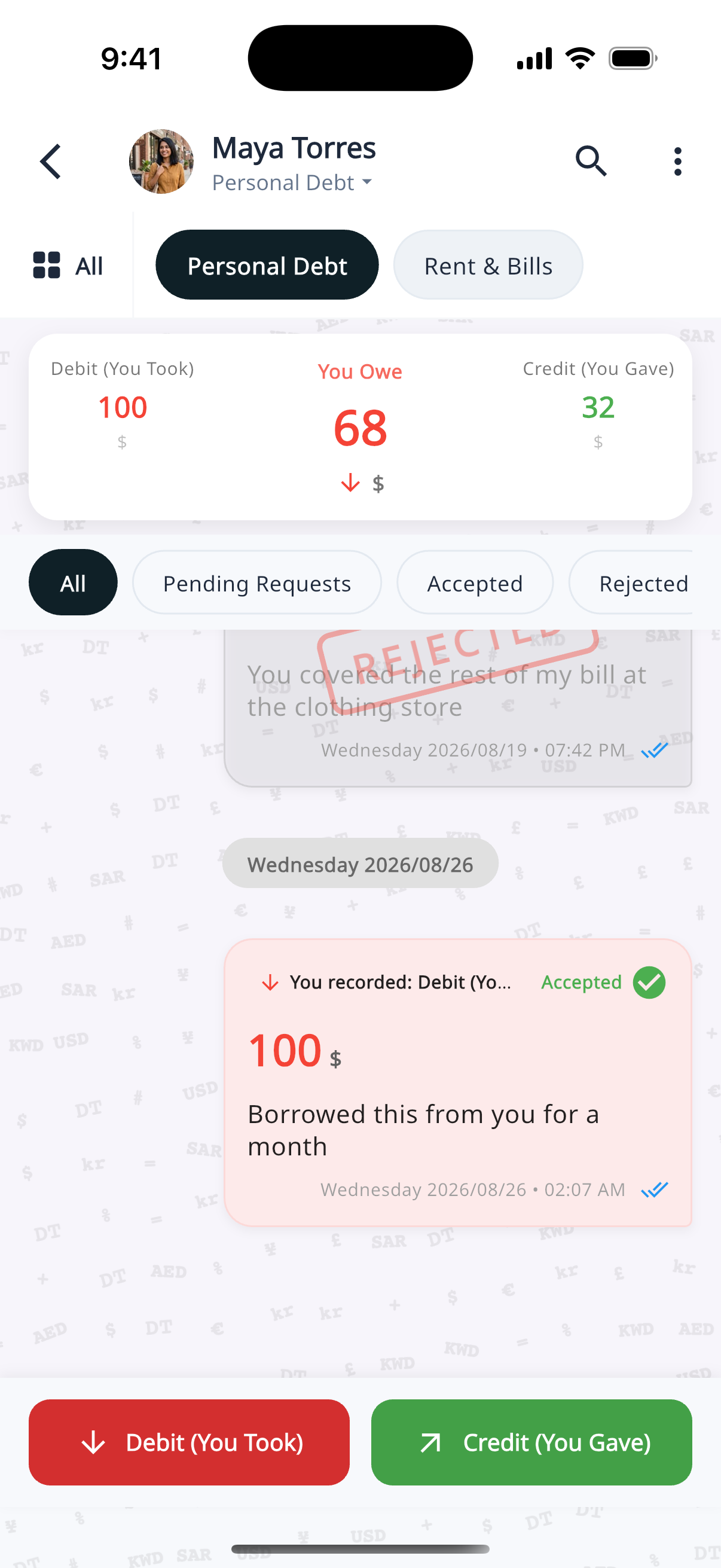
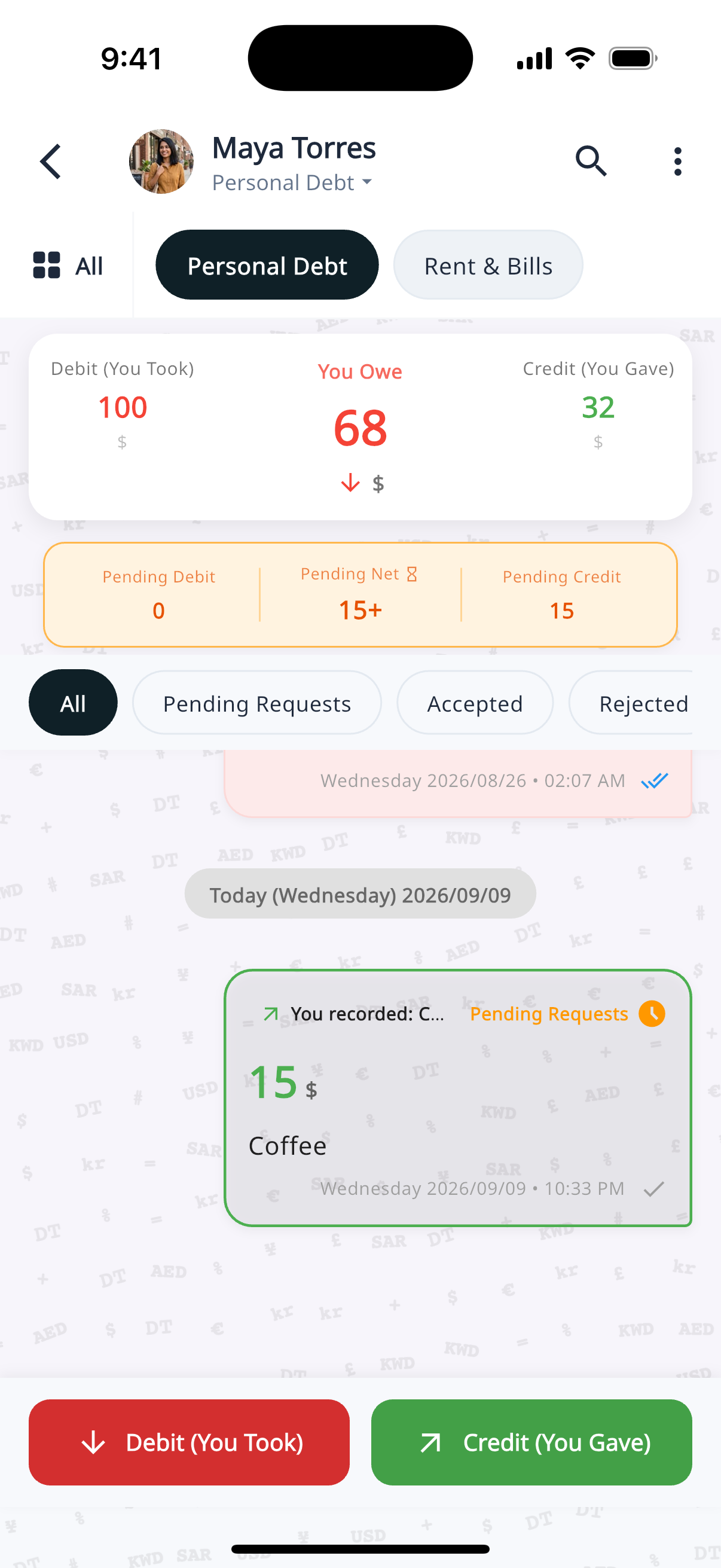
Log what happened in two taps: Debit (You Took) for money or an item you received, Credit (You Gave) for money or an item you gave. Each entry needs the other party's confirmation before it counts — pending requests don't change your balance until accepted.
07
Generate Custom Statements in Seconds
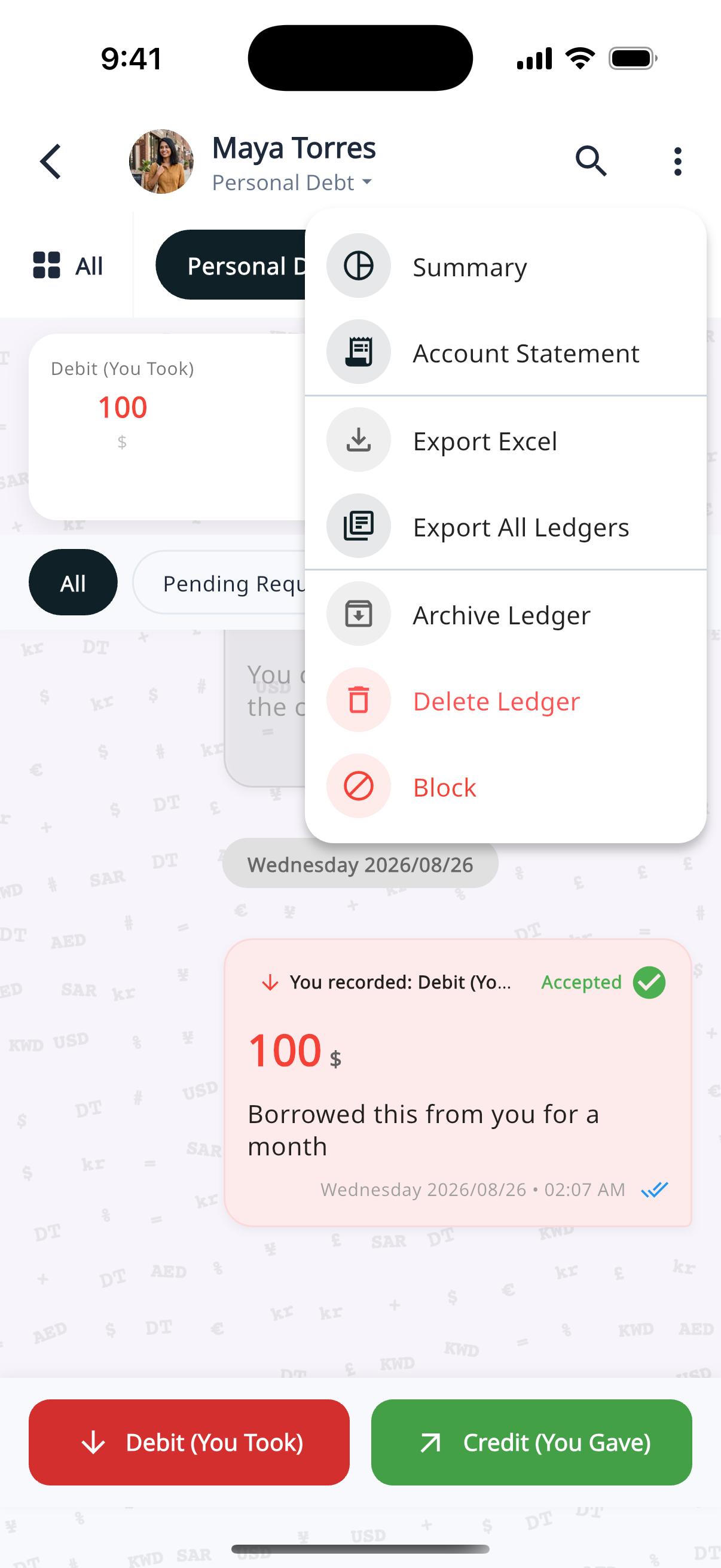
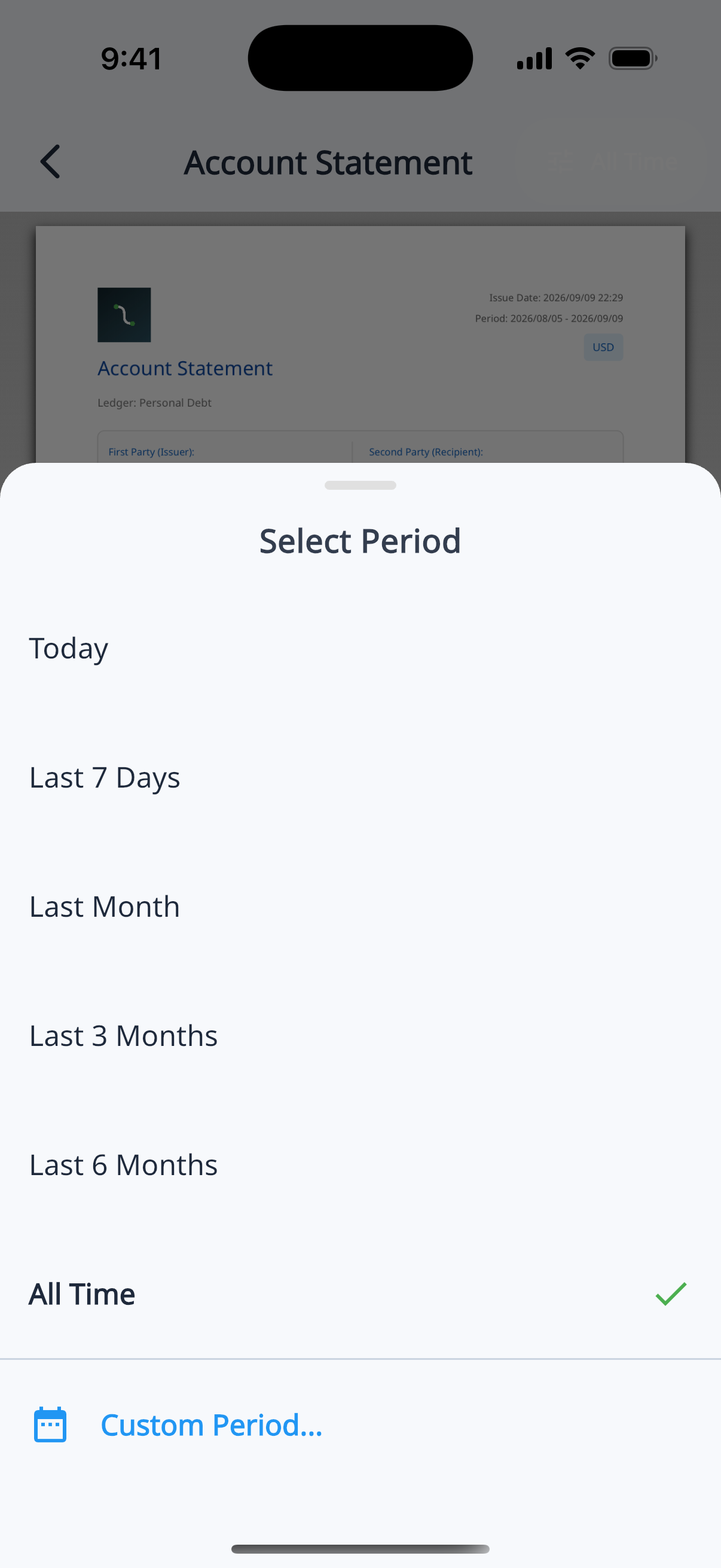
Open "Account Statement" from the ⋯ menu inside any ledger. Pick a period — Today, Last 7 Days, Last Month, Last 3 Months, Last 6 Months, All Time — or Custom Period for an exact date range.
08
The Perfect Account Statement
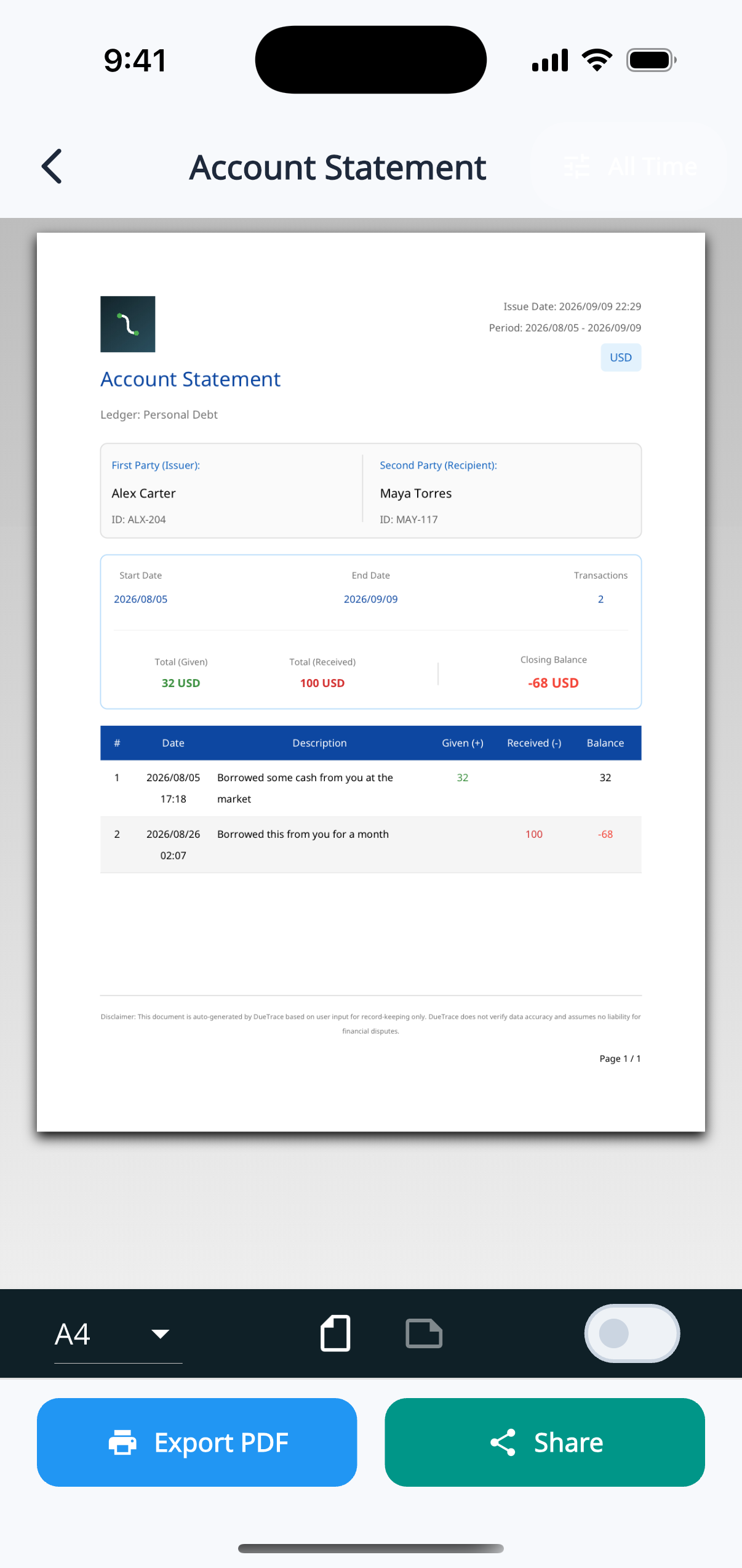
Get a comprehensive, professional breakdown of every transaction. Pinch to zoom in on the preview, then Share or Export PDF.
09
Personal Wallets
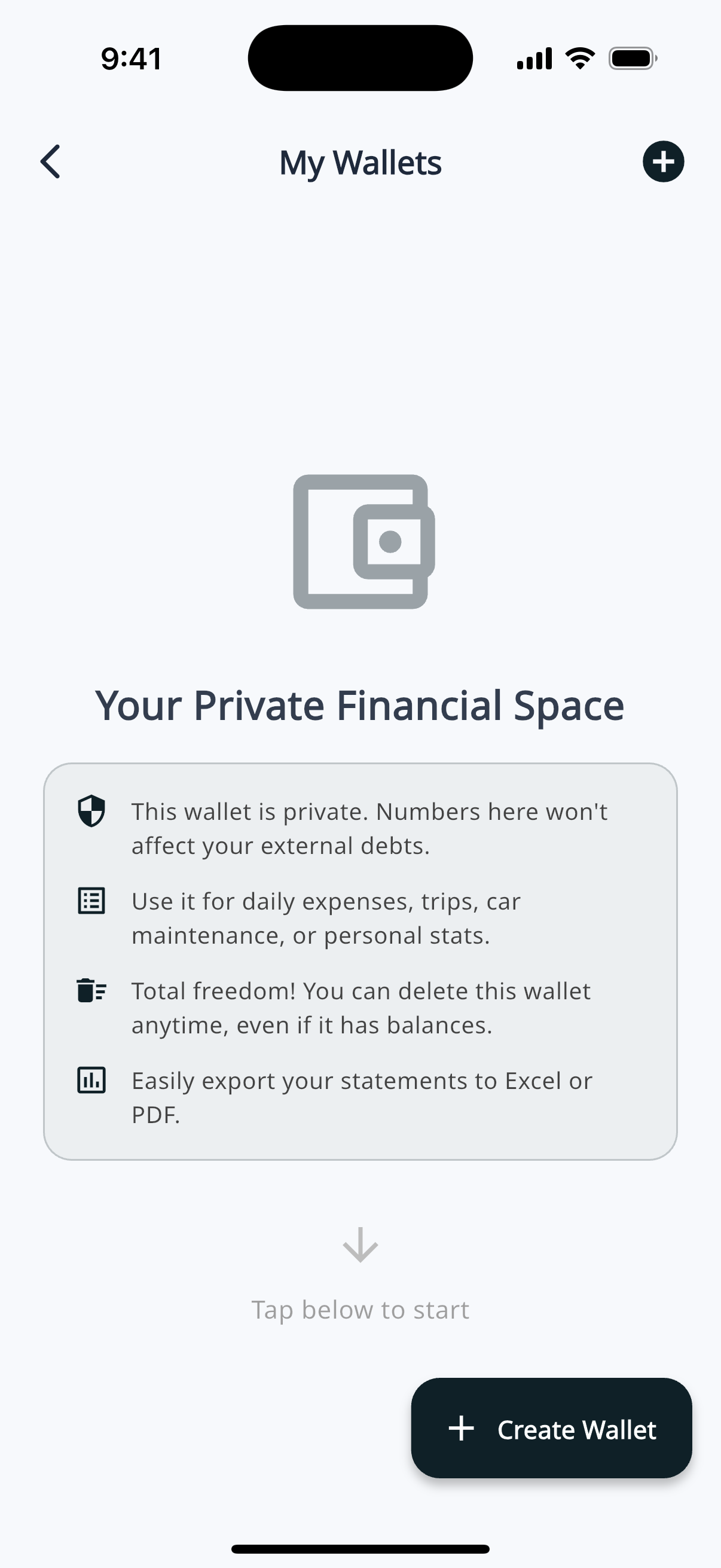
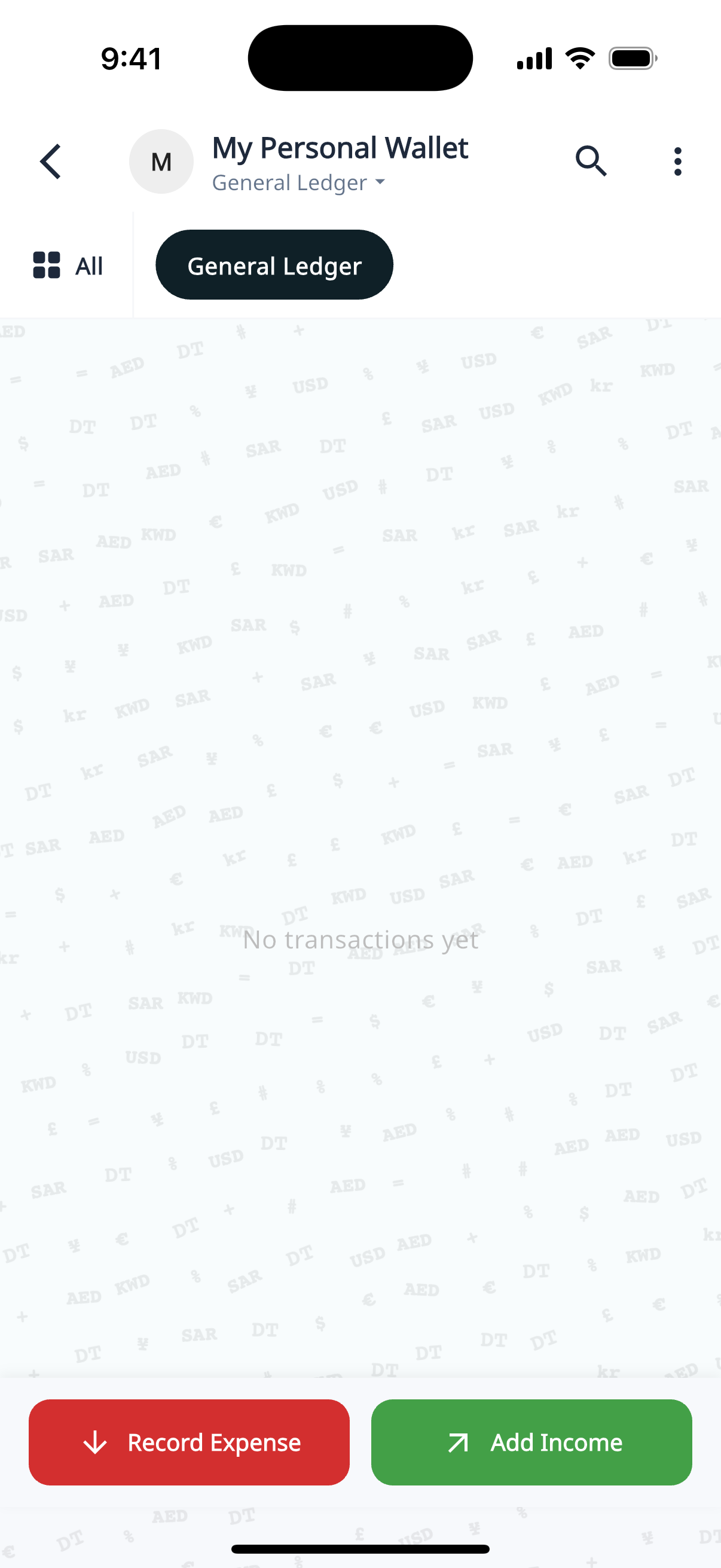
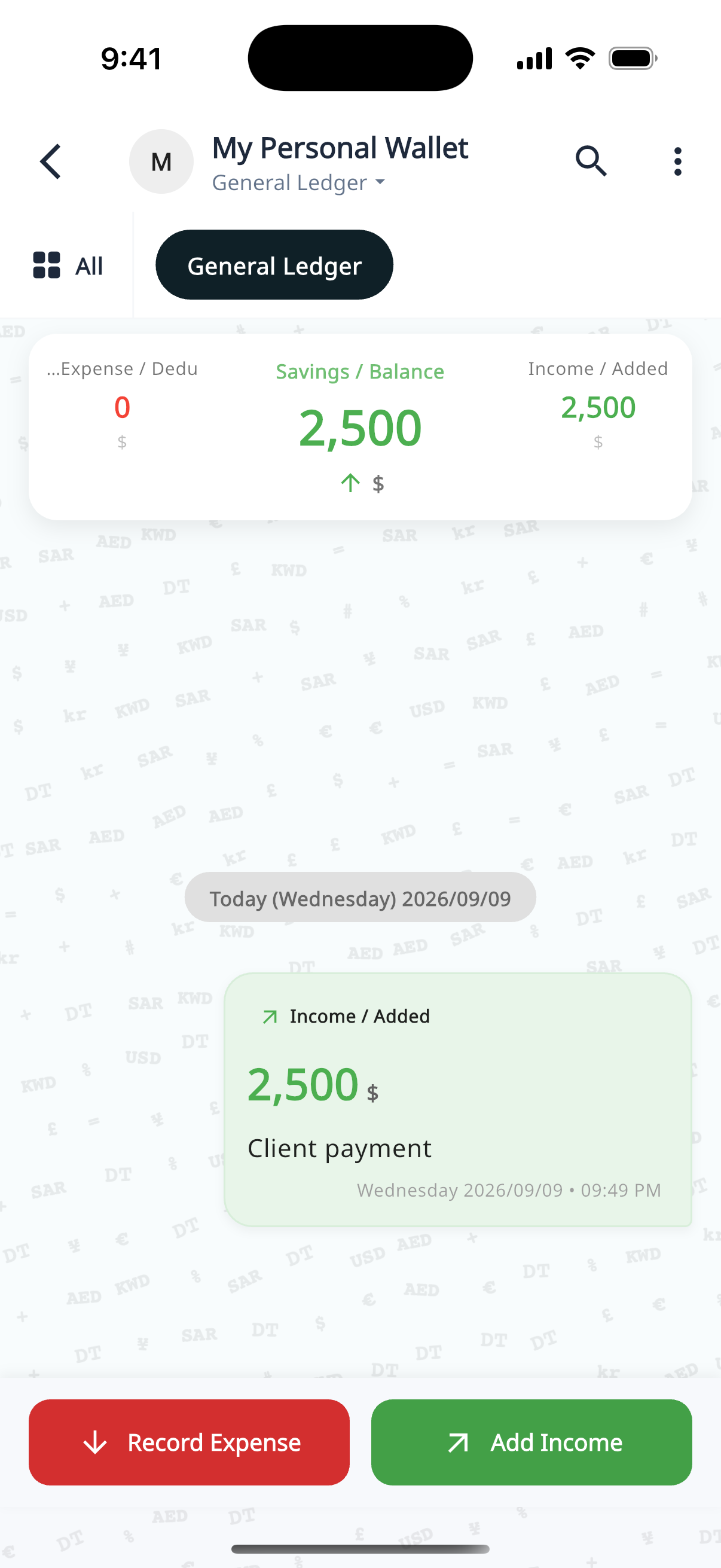
Private books for you alone — they never change what you owe someone else. On Home, tap Wallets (not the + button), then + Create Wallet. Name and currency use the same setup as a shared ledger. Buttons are Record Expense and Add Income, and entries apply immediately — no confirmation needed since it's just you.
Also worth knowing
Also worth knowing
Languages
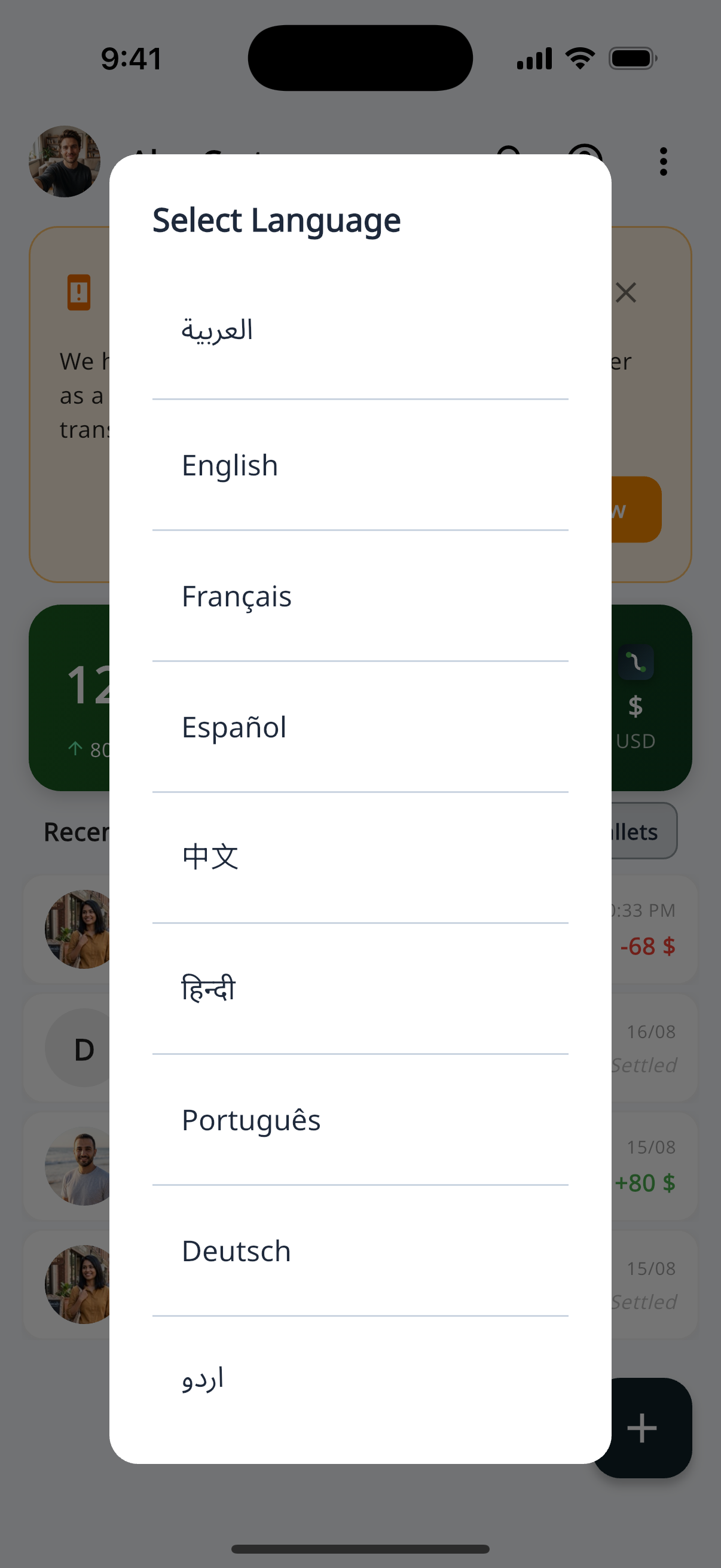
DueTrace speaks your language. Switch anytime under Language in Settings — nine languages, each shown in its own script: العربية, English, Français, Español, 中文, हिन्दी, Português, Deutsch, اردو.
Currencies
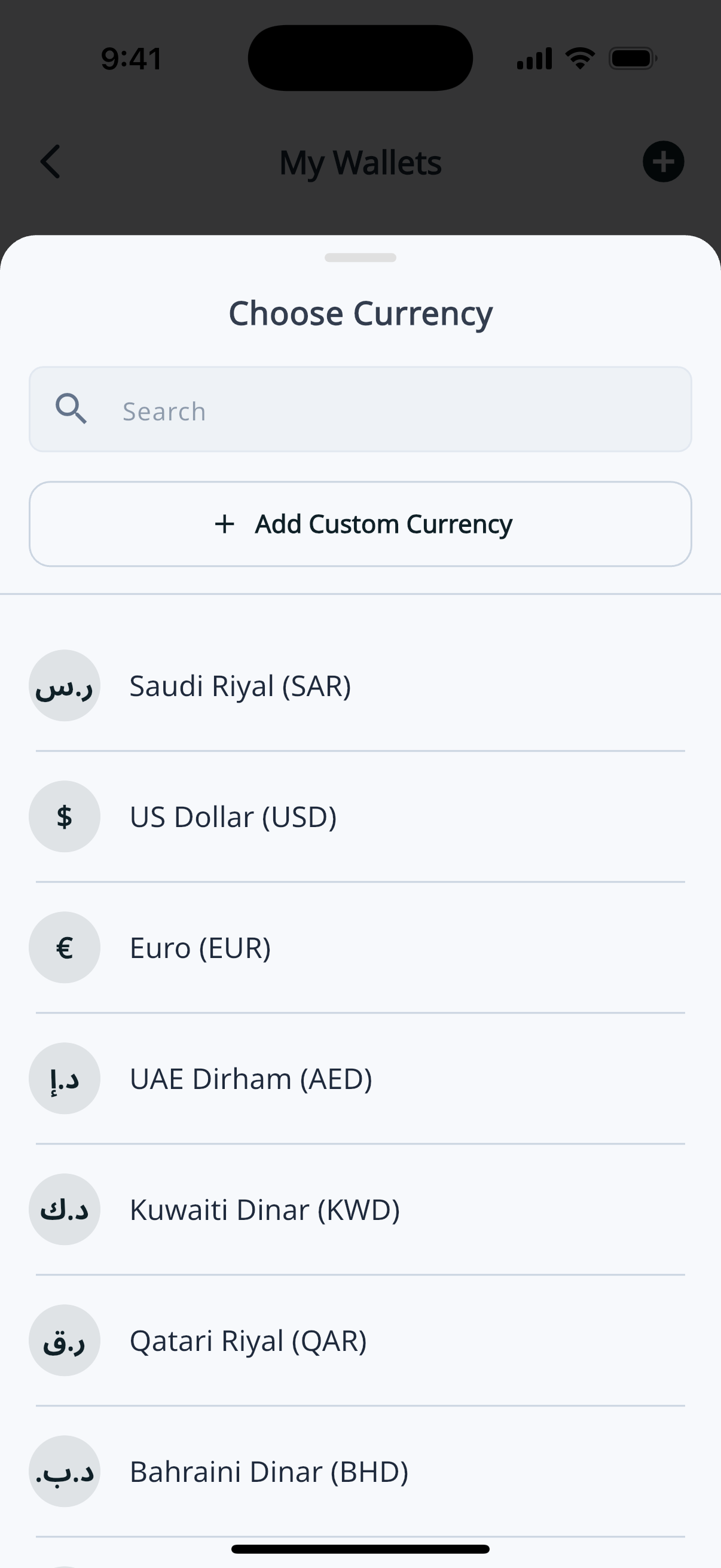
Track transactions in the currency that matters to you. Choose from a built-in list of 60+ major currencies when creating a ledger or wallet, or tap "Add Custom Currency" to save your own — including crypto like USDT, BTC, and ETH.
10
Take Control of Your Shared Finances Today!
Say goodbye to awkward money texts, lost notes, and messy calculations. Download DueTrace now — iOS, Android, or try it instantly in the browser.